

For Cassini operators using the RI8608 Linux NUC, the UI is familiar with some subtle differences. The Cassini application runs inside ArcaOS desktop container (Oracle VirtualBox) that connects via DbManager and Saturn to control the tester via a USB RIFL Master interface attached to the Cassini Infrastructure. All Guru apps run natively in Linux OS except for the Cassini application that runs in the ArcaOS desktop window. Those familiar with the Cassini Virtual Workstation may notice that the ArcaOS desktop has icons and features removed that are now provided by the Linux host OS. Additional Linux native application and utilities are also available and should be used, like when viewing PDF files or accessing the desktop remotely via VNC.
What Is This?
Automatic Startup
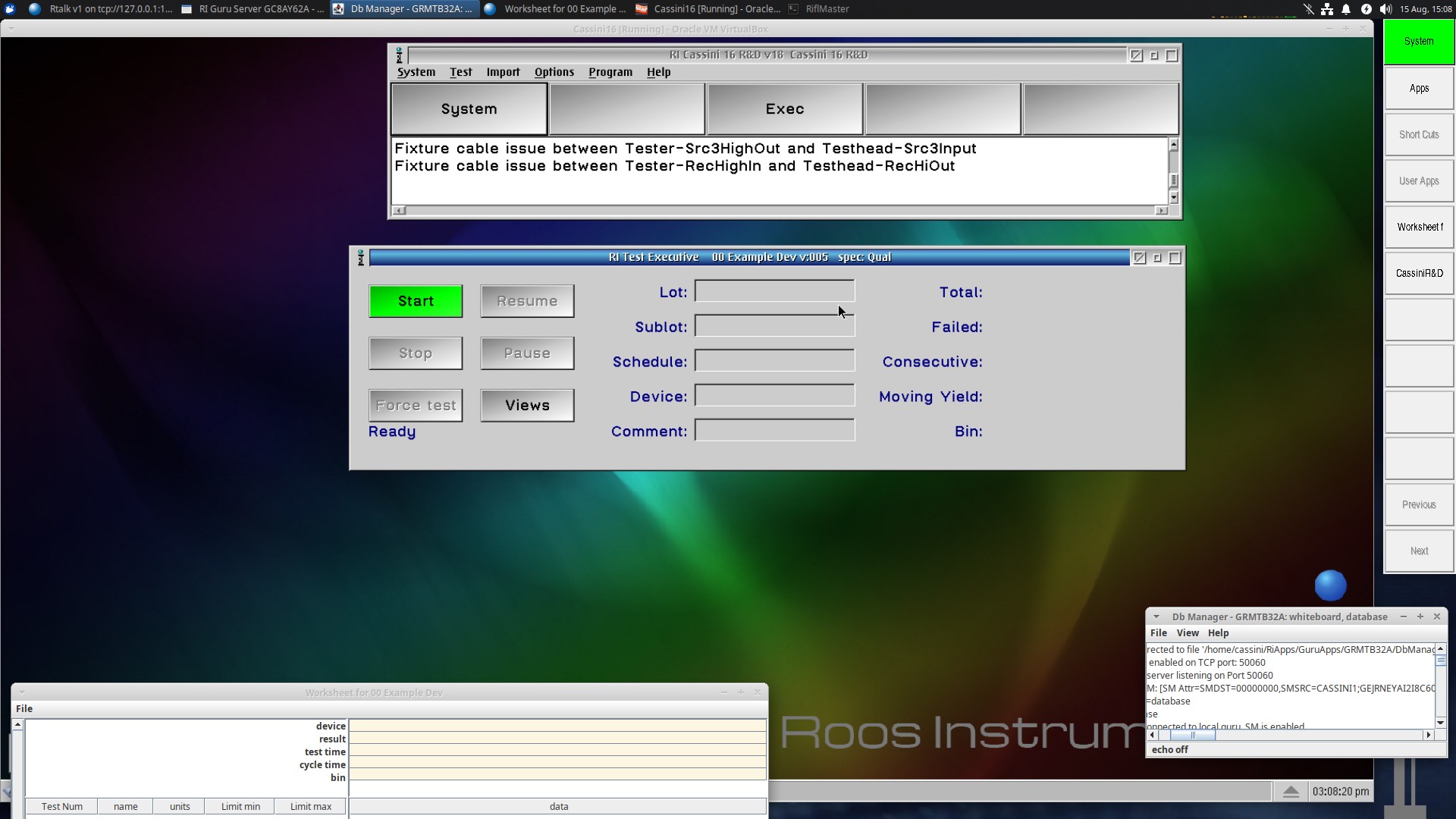
After booting and network connection available, the Linux EPC will automatically Log in and launch the Guru client, Db Manager along with the Saturn and the ArcaOS virtual desktop. The Short Cuts menu will only activate if the ArcaOS desktop and Db Manager applications are open. The Saturn window must be allowed time to load the tester configuration and wait until "Tester Loaded" is show before using. Saturn and DbManager apps should not be closed when using the Cassini app since it connects with the hardware through those applications. Each of these vital applications will automatically restart after being closed.
Tips using Linux OS Desktop
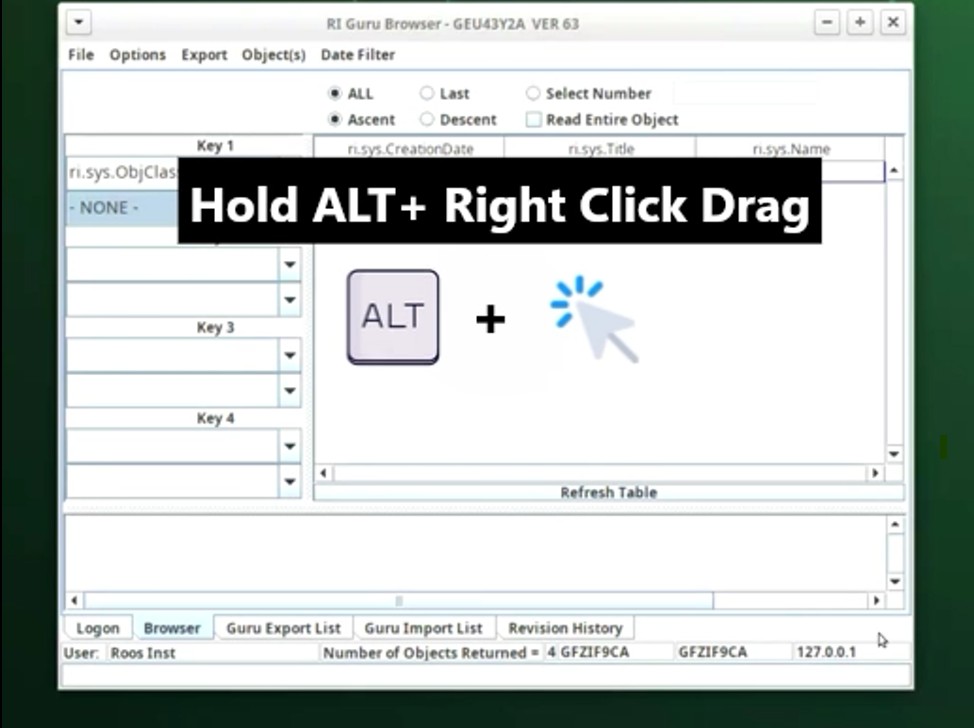
- Resize windows with ALT+Right Mouse Button drag, since clicking precisely on the thin window edges is difficult. (See Figure 1)
- Use WIN+ALT keys if "ALT+Click" to edit table values (CSV or Limits) in the Cassini application.
- Search "xUbuntu 24.04 LTS" for guides available on the internet to help.
- Use SCP instead of FTP to transfer files to and from the NUC (WinSCP on Windows OS or Cyberduck on MacOS)
- Ask an admin to setup VNC to remotely connect to the current desktop, otherwise log out and connect via Remote Desktop (RDP) since ONLY one user session is allowed to be active at a time and the activity is not displayed for local users. (RI8608 Linux NUC Admin Guide https://roos.com/docs/RBEH-DFTNQE)
- Multiple displays can be used to extend the available workspace.
Notable Similarities
- Launch Cassini from the Short Cuts menu and Execs from the User Apps menu. Cassini will appear within the ArcaOS desktop container window using VirtualBox.
Log On > Engineer/password > Short Cuts > [Latest Dev] or User Apps > [DUT Exec] - Development with the Cassini application is familiar, however the Worksheet displays as a separate, native window in the Linux OS.
- Use multiple monitors or resize the ArcaOS desktop window by switching to scaled mode with [VboxHost] Right CTL + C.
Key Differences
- Cassini Worksheet opens behind the ArcaOS (VM) desktop a new Linux window visible by clicking on the Worksheet app from the task bar or Guru.
- Files saved to the Cassini Drive-D (D:/) are in ~/Cassini-D folder (~ is shorthand for /home/ folder). Saving CSV Limit table or Diagnostics Results to D:\shared\sample.txt is also in ~/Cassini-D/shared/sample.txt path in Linux OS apps or remote file transfer tools like SCP.
- Saturn defaults to saving in the ~/RiApps/data folder.
Troubleshooting
- RED Cassini message window appears if RIFL connection is lost through the Saturn application. Save any changes and restart the Linux OS to quickly recover.
- Nothing will launch until a network connection is made. Connect the network adapter to the LAN or enable Wifi and connect to an available AP to start.
Figure 1: Resize windows with ALT+Right Mouse Button Drag
VIDEO:
 Alt+Right Mouse Drag 480P-1.webm